Company accounts view
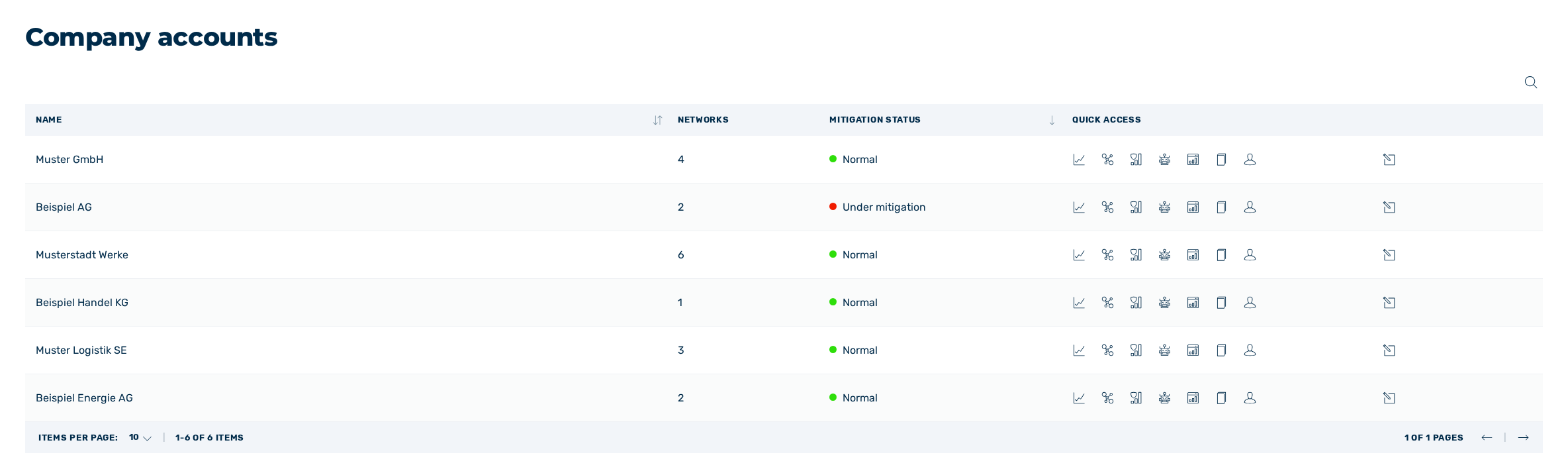
Company accounts view
The Company accounts view appears automatically on the home page when you log in to the Myra DataHub. Here you can view a list of all customers and their data. As a SOC admin, you can also manage and change existing companies in the Company accounts view.
The following information is shown in the table:
| Element | Description |
|---|---|
| Name | The name of the customer. |
| Networks | The registered IP addresses of the customer. |
| Mitigation Status | The mitigation status for the related company.
|
| Quick Access | Shows the icons for direct access to the possible settings for the selected company. |
 : One or more mitigations have been initiated.
 : One or more mitigations have been successfully completed.
The following options are available:
| Element | Description |
|---|---|
 |
The icon enables you to search specifically for names, customer IDs, and networks. |
 |
The icon opens the Dashboard view of the respective company with information about its network traffic. See Dashboard view. |
 |
The icon opens the Networks view of the respective company. Manual mitigations can be started or stopped immediately here. See Networks view. |
 |
The icon opens the Mitigation history view of the respective company with a list of all past mitigations. See Mitigation history view. |
 |
The icon opens the Audit Log view of the respective company with a list of all changes of the company. See Audit log view. |
 |
The icon opens the Company management view of the respective company. Here you can view and change the settings for accounts. See User management view. |
 |
The icon opens the Edit company dialog for editing the name and the settings of the company. See Edit company.NoteTo change a company, you need SOC administration rights. |
Note
In SOC mode, you act as the admin of the respective company. An orange status bar below the top navigation bar indicates that you are in SOC mode for a company.
If you have opened a company and want to return to the overview of all companies in the Company accounts view, you must use the Back to the overview button. Using the back button in the browser does not work.
If you initiate manual mitigation for a company or make other changes in SOC mode, this will be recorded in the audit logs as a change made by you as a SOC user.
