Start manual mitigations
Note
Mitigations are only possible for the entire network.
Note
You can only start a manual mitigation if the SOC admin has enabled it for the network.
If you suspect that a company has been targeted by an attack, you can initiate manual mitigation at any time.
Proceed as follows to start a manual mitigation:
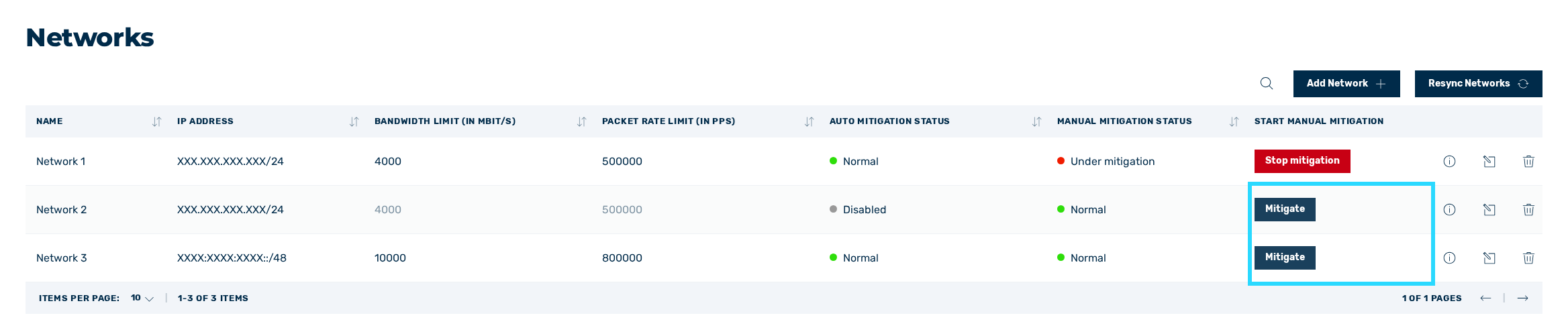
Buttons for initiating mitigation
- ► Click on the Mitigate button.
- ↳ The Mitigate network or IP address(es) dialog opens.
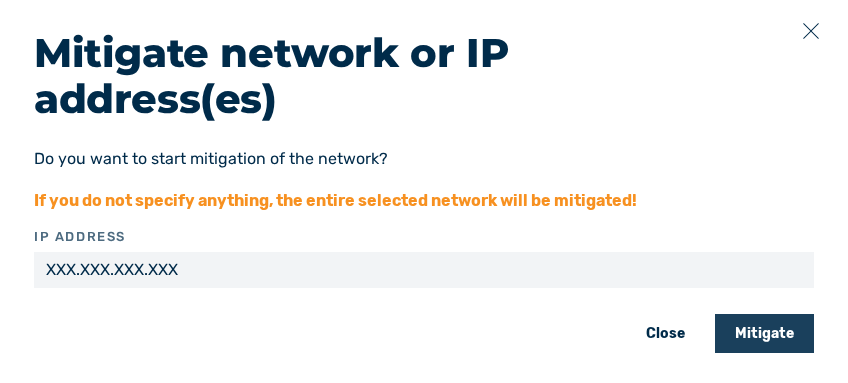
Mitigate network or IP address(es) dialog
- ► Click on the Mitigate button.
- ➔ A message confirms that mitigation has started successfully.
Next to the Networks view in the left navigation bar, the mitigation icon  is visible, and in the Manual mitigation status column, the status changes to one of the following values:
- Under mitigation: Manual mitigation has been initiated for the entire network.
Note
In the case of manual mitigation, traffic is redirected via the scrubbing center, attacks are mitigated or blocked, and you receive a notification via email.
Note
The mitigation icon next to the Networks view in the left navigation bar remains visible for as long as the Myra DataHub is running mitigations. The mitigation icon only disappears once all running mitigations have been stopped.