View network
Note
To create and delete a network, as well as view and change settings, you need SOC administration rights.
Proceed as follows to view the settings for a network:
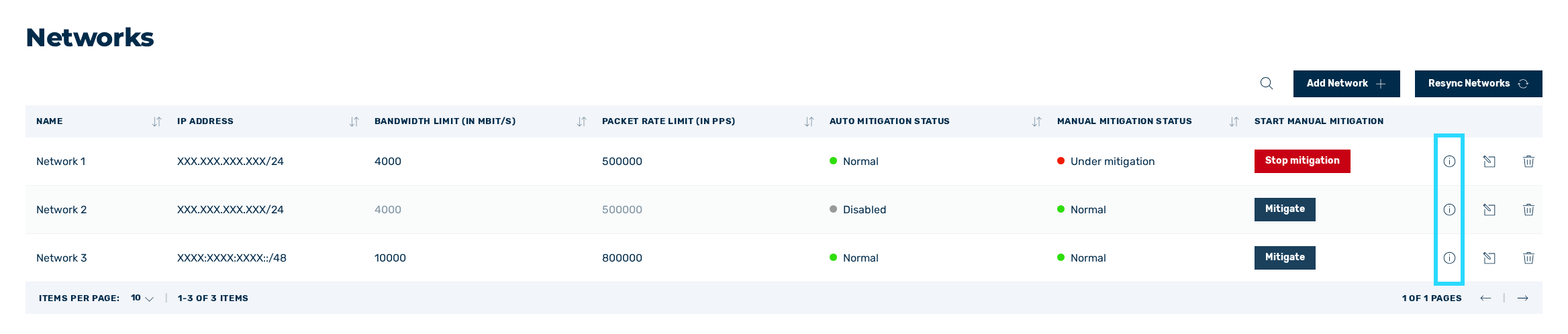
Icon for viewing the network
- ► Click on the
 icon.
icon. - ↳ The Information about <network name> dialog opens.
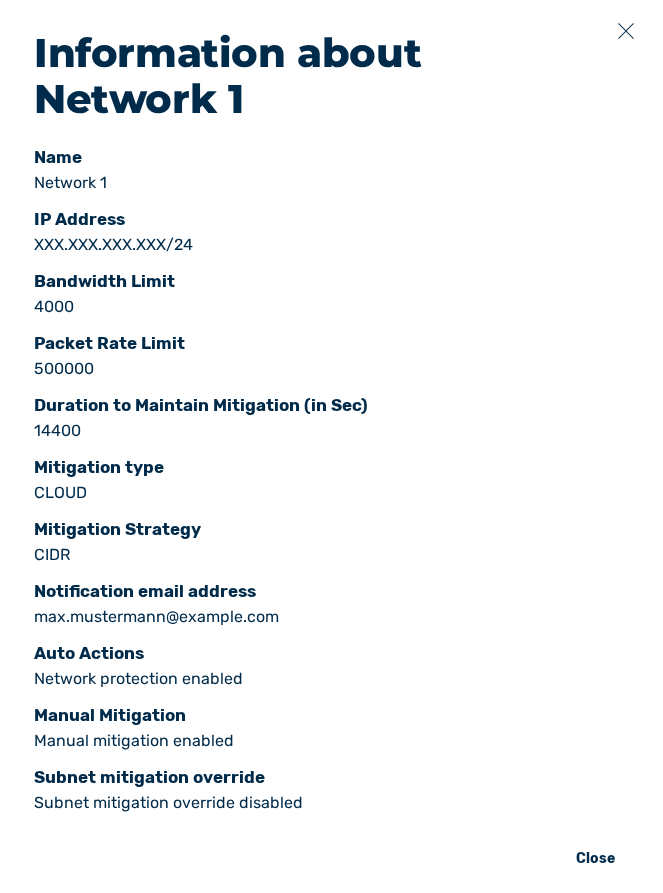
Information about network dialog
In the Information about <network name> dialog, you can view the following information:
| Element | Description |
|---|---|
| Name | The name of the network. |
| IP Address | The IP address of the network. |
| Bandwidth Limit (in MBit/s) | The threshold value for the maximum possible bandwidth. |
| Packet Rate Limit (in PPS) | The threshold value for the maximum number of packets allowed per second. |
| Duration to Maintain Mitigation (in Sec) | The duration of mitigation in seconds after traffic has fallen below the thresholds. |
| Mitigation type | The way in which mitigation is carried out. The following values are available:
|
| Mitigation Strategy | Indicates whether only a single IP address or the entire network is automatically mitigated. The following values are available:
|
| Notification email address | The email address of the users to whom mitigation notifications are sent. |
| Auto Actions | Indicates whether automatic mitigation is performed for the selected network or not. The following values are available:
|
| Manual Mitigation | Shows whether a manual mitigation may be started for the network.NoteIf the manual mitigation is disabled, the Mitigate button cannot be clicked. |
| Subnet mitigation override | Indicates whether the network supports the use of /32 or /28 subnets. |
Note
For a network in data-only mode, the dialog shows Name and IP Address only. All details about thresholds and mitigation are omitted, because no mitigation is performed for the network.